How to Record Readable Screen Footage for a SaaS Demo
Learn saas demo video recording tips for resolution, zoom, and cursor movement so every pixel of your UI stays readable on any screen size.

I've watched hundreds of SaaS demo videos die in the first eight seconds. Not because the product was bad. Not because the script was weak. Because nobody could read the screen.
You know the feeling. A founder shares their screen, zooms into nothing, drags their cursor around like they're swatting flies, and the actual UI — the thing you're supposed to be selling — looks like a smudge of gray rectangles. I've made this mistake myself. On an early Flare demo, I recorded my entire screen at 1440p, exported at default settings, and shipped it before realizing half our viewers were watching on phones where the text was smaller than a nutrition label.
Readable screen footage isn't a nice-to-have. It's the whole job. If someone can't read your interface, they can't trust that your product works. So let's get into the actual mechanics — resolution, zoom, cursor behavior, and UI legibility — because these four things determine whether your demo converts or gets closed at second nine.
SaaS Demo Video Recording Tips That Actually Matter
Most advice on this topic stops at "use a good screen recorder." That's not advice, that's a shrug. Here's what actually moves the needle when you're capturing software on screen.
The core problem is scale mismatch. Your monitor is probably 24 to 32 inches. Your demo viewer is watching on a 13-inch laptop or, increasingly, a phone held at arm's length. Every pixel of UI you capture gets shrunk down 3x to 10x by the time it reaches them. If your text was already small on your own screen, it's unreadable on theirs.
This is the single biggest reason SaaS demos flop. Not bad scripts. Not boring voiceover. Just text nobody can see.
Resolution: record bigger than you think you need
Record at a minimum of 1920x1080, and if your machine can handle it, go 2560x1440 or higher. This feels counterintuitive — shouldn't smaller resolution be easier to compress and faster to edit? Sure, but you're trading file size for legibility, and legibility wins every time.
Here's the trick most people miss: resolution isn't just about the recording settings in your software, it's about your actual display scaling. If your OS is set to 150% or 200% scaling (common on Retina displays and high-DPI Windows laptops), your recording software might capture at a lower effective resolution than the number suggests. Check your output file at 100% zoom before you trust it. If text looks soft or fuzzy at native size, something's wrong upstream — not in the editing stage.
I'd also recommend recording at a resolution higher than your final export. If you're delivering a 1080p video, record at 1440p or 4K. That extra resolution gives you room to zoom in during editing without introducing pixelation — which brings us to the next point.
Zoom: punch in, don't pan around
Cursor movement across a full, un-zoomed interface is one of the most common ways demos lose viewers. If your viewer has to track a tiny arrow moving across a 2560-pixel-wide screen to find the button you're talking about, you've already lost them.
Instead, zoom into the specific region of the UI you're demonstrating. A good rule: if a UI element occupies less than 15% of the frame, it's too small to register at a glance on mobile playback. Punch in during editing (most screen recorders and editors like Camtasia, ScreenFlow, or even CapCut support dynamic zoom and pan) so the relevant button, chart, or form field takes up 40-60% of the frame when you're talking about it.
Don't zoom and pan simultaneously — that combination makes viewers seasick. Zoom in, hold, then cut or smoothly pan, not both at once.
Record your raw screen footage un-zoomed, then add zoom effects in post. This gives you flexibility to adjust timing and framing without re-recording, and it keeps your source file flexible for repurposing into shorter clips later.
Cursor movement: slow down and move with intention
Nervous cursor movement is a tell. It signals you don't actually know your own product, even if you do. I've reviewed creator-submitted demo footage for Flare where the cursor darted around the screen like it was being chased — total information overload for the viewer.
Three fixes that take minutes to implement:
Move deliberately. Click, pause for half a second, then move to the next spot. Don't glide continuously from one end of the screen to another.
Use cursor highlighting. Most recording tools (Loom, ScreenFlow, OBS with plugins) let you add a spotlight or color ring around the cursor. This draws the eye exactly where you want it without relying on the viewer to hunt for a tiny arrow.
Slow your mouse sensitivity before recording. Drop your OS pointer speed to half its normal setting just for the recording session. It feels sluggish to use but looks intentional and confident on camera.
If you're following a structured approach to your script, cursor movement should match your narration beat for beat — see our guide on writing a software demo script that shows real value for how to pair spoken cues with on-screen action.
UI Legibility: Prep Your Product Before You Hit Record
This is the part everyone skips, and it's the part that makes the biggest difference. Your product's actual UI needs preparation before it's demo-ready, the same way a house gets staged before a showing.
Close unrelated browser tabs, notification badges, and any sidebar clutter. A red "47" on a notifications icon pulls the eye away from your core feature every single time. Turn off Slack, email, and calendar popups system-wide before you start — I use a simple "Do Not Disturb" toggle and still double check, because one Slack ping mid-recording has ruined more takes than I'd like to admit.
Check your font sizes in the actual product, not just your recording. If your SaaS app defaults to a 12px font for data tables, consider whether you can temporarily bump text size via browser zoom (Cmd/Ctrl + or the devtools) before recording that section. A 125% browser zoom often makes a huge legibility difference without visibly distorting your layout.
Populate the product with real-looking data, not "Lorem ipsum" or test@test.com. Blank states and placeholder junk make your UI harder to read because there's no visual hierarchy — numbers and names give the eye something to parse. We cover this in more depth in our piece on setting up a demo account and sample data for your SaaS explainer video, but the short version: realistic data isn't just about believability, it directly affects whether people can actually scan your screen.
Color contrast and dark mode traps
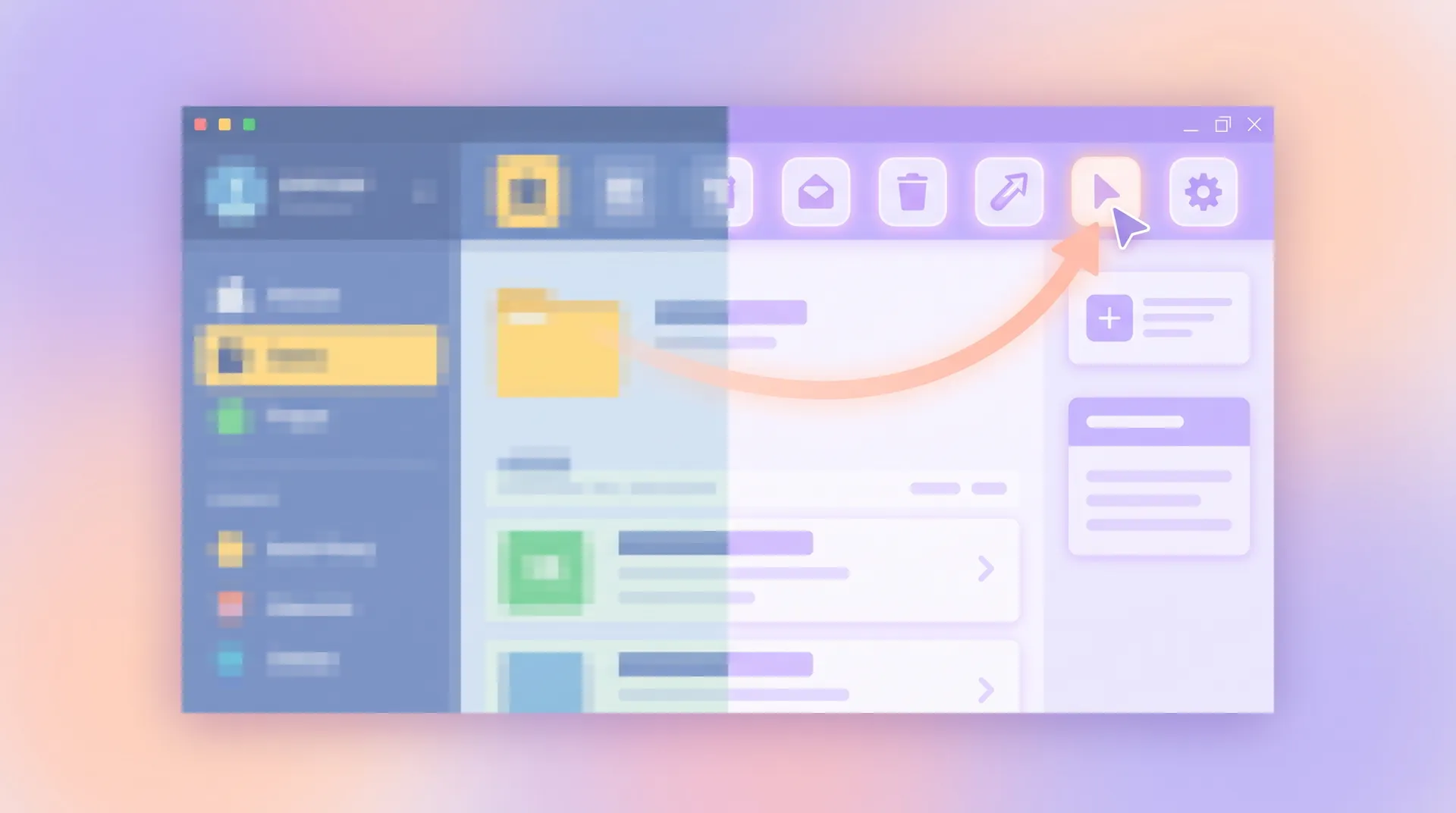
Dark mode interfaces look slick in person and often look muddy on video, especially when compressed for social platforms. If your product supports both light and dark themes, test record a short clip in each before committing. Low-contrast text (light gray on white, or medium gray on dark gray) that's perfectly readable on your calibrated monitor can disappear entirely after compression on YouTube or LinkedIn.
If you're not sure your contrast holds up, run a quick check with a tool like the WebAIM contrast checker against your actual UI colors. Anything under a 4.5:1 ratio for body text is a legibility risk on video, not just for accessibility compliance.
Frame rate and compression settings
Record at 30fps minimum for static UI demonstration, 60fps if you're showing any kind of animation, drag-and-drop, or transition inside your product. Choppy 15fps screen capture makes smooth app interactions look broken, which undermines trust in your product's performance even when nothing is actually wrong with it.
When exporting, avoid over-compressing. A heavily compressed H.264 export can turn clean text edges into blurry artifacts, especially around small fonts. If you're publishing to YouTube, their own recommended upload specs are a good baseline — aim at or above their suggested bitrate for your resolution rather than the minimum.
Never trust the compressed preview inside your editing software. Export the final file and watch it on the actual platform (YouTube, your landing page embed, LinkedIn) before calling it done. Compression artifacts only show up after the real export pass, and platforms re-compress on top of your export.
Match Your Footage to the Right Demo Format
Readable footage only matters if it's serving the right kind of demo in the first place. A quick workflow capture needs different framing than a full narrated product tour. If you haven't nailed down which format fits your goal, our breakdown of software demo video vs explainer vs tutorial walks through how to pick the right structure before you even open your recording software.
And if you're building toward a demo video that's meant to drive signups or close deals rather than just inform, it's worth stepping back and reading our full guide to planning and producing a SaaS demo video that sells. Recording technique is only one piece — the planning that happens before you hit record determines whether readable footage actually adds up to a demo that converts.
One more thing worth saying: pick one workflow to show and show it well, rather than cramming five features into one recording session. Our piece on choosing one workflow and one outcome for your SaaS demo video explains why narrowing scope actually makes your footage easier to frame, zoom, and keep legible throughout.
A Simple Pre-Recording Checklist
Before you hit record, run through this quickly:
Display resolution set to native or higher, scaling checked and verified. Browser zoom bumped if UI text runs small. Notifications and badges cleared across the entire OS. Sample data populated so screens don't look empty or fake. Cursor speed reduced, highlighting enabled if your tool supports it. Dark mode contrast tested if that's your default theme. Recording resolution set higher than your intended export resolution.
It takes maybe five extra minutes. I've skipped it before and paid for it with a full re-record two days later because the client's product team couldn't read a single pricing table in the first cut.
If you're pairing screen footage with voiceover, make sure your audio quality matches your visual polish. A crisp screen recording paired with muffled narration undercuts the whole effort — our guide on UGC audio quality covers mic setup basics that apply just as well to demo voiceover as creator content.
FAQ
Frequently Asked Questions
What resolution should I record a SaaS demo video in?
How do I make small text readable in a screen recording?
Should I record my demo at 30fps or 60fps?
Why does my screen recording look blurry after exporting?
How do I fix cursor movement that looks nervous or distracting?
Does dark mode affect screen recording legibility?
Related reading
- How to Plan and Produce a SaaS Demo Video That Sells
- Demo Account & Sample Data Setup for Your SaaS Explainer Video
- Software Demo Video vs Explainer vs Tutorial: Pick Right
- SaaS Demo Video: Pick One Workflow and One Outcome
- How to Write a Software Demo Script That Shows Real Value
- UGC audio: how to sound as good as you look